How to Set Up Google Review Notifications (Never Miss a Review Again)
Step-by-step guide to setting up Google review notifications through Google Business Profile, email alerts, third-party monitoring tools, and team messaging integrations like Slack and Microsoft Teams. Includes response time benchmarks, notification workflow optimization, and why faster review responses directly impact your search ranking.
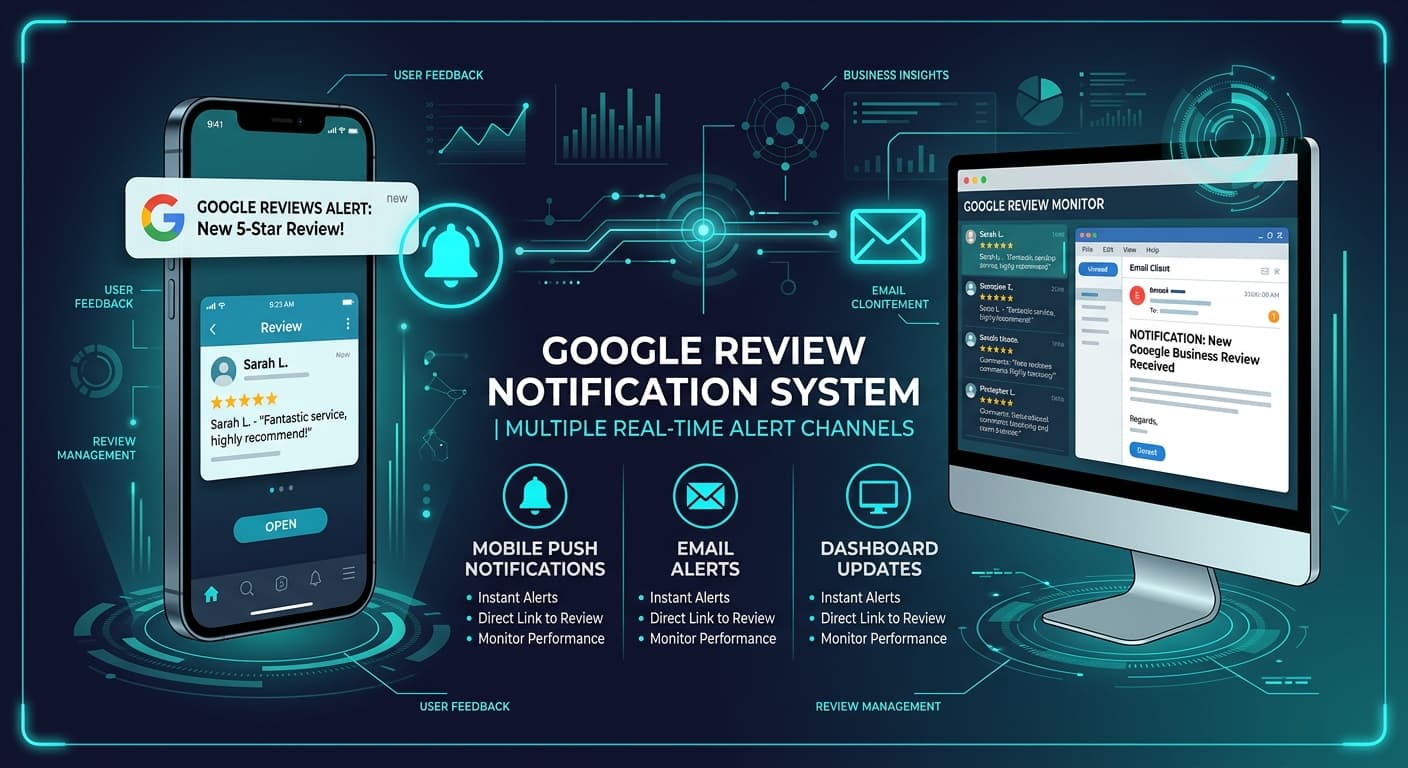
A customer leaves a 1-star review on your Google Business Profile at 9:47 AM on a Tuesday. You discover it the following Friday when you happen to check your listing. By then, 200 to 300 potential customers have seen that review sitting unanswered for four days. Each one made a judgment — not just about the negative experience described, but about the fact that you did not care enough to respond.
This scenario plays out every day for thousands of businesses, and it is entirely preventable. Google review notifications ensure you know about every review within minutes of it being posted, giving you the opportunity to respond quickly, manage your reputation proactively, and demonstrate to future customers that you are engaged and responsive.
Yet most businesses rely on a single notification channel — usually the default Google email — and miss reviews regularly because that email gets buried, filtered, or sent to an inbox nobody checks. This guide walks through every available notification method, from the built-in Google tools to advanced third-party monitoring, so you can build a notification system that actually works.
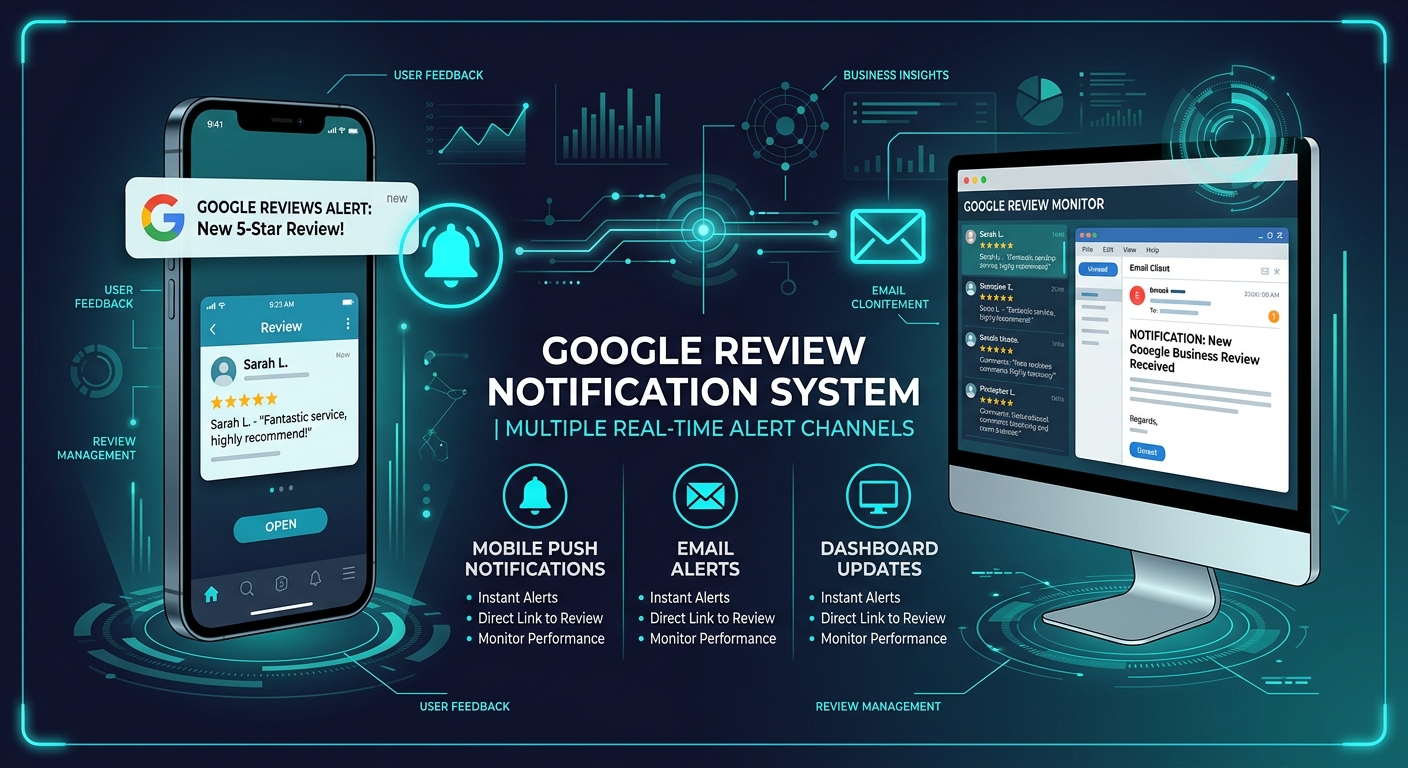
Why Review Response Speed Matters
Before configuring notifications, understand why speed matters. Review response time is not a vanity metric — it has measurable impact on your business.
The Data on Response Time
| Response Time | Customer Perception | Impact on Rating | Business Outcome |
|---|---|---|---|
| Under 1 hour | "They really care" | Most likely to trigger updated/improved review | 33% higher chance of customer returning |
| 1-4 hours | "Responsive and attentive" | Moderate chance of review update | Positive signal to prospective customers |
| 4-24 hours | "Acceptable" | Low chance of review update | Neutral — meets minimum expectations |
| 1-3 days | "Slow but at least they responded" | Very low chance of review update | Better than no response, but damage is done |
| 3+ days | "They do not care" or "They are hiding" | Zero chance of positive outcome | Prospective customers see neglect |
| No response | "Confirmed — the reviewer was right" | Active harm to reputation | 53% of customers expect a response within 7 days |
Research from ReviewTrackers found that 53 percent of customers expect a business to respond to their review within seven days. But the real competitive advantage comes from responding much faster than that. A Harvard Business Review study found that businesses that respond to reviews quickly see higher overall ratings over time — not because the responses change existing reviews, but because the visible responsiveness encourages more positive reviews from future customers who feel confident the business is listening.
Google's Own Signals
Google's local search algorithm considers review engagement as a ranking factor. While Google has not published the exact weight, SEO research consistently shows that businesses with higher review response rates rank better in the local pack. Responding to reviews — especially negative ones — sends a signal that your business is active, attentive, and customer-focused.
"Review response time is not just about damage control for negative reviews. Fast responses to positive reviews increase the likelihood that satisfied customers become repeat reviewers and referral sources. Speed signals care, and care builds loyalty."
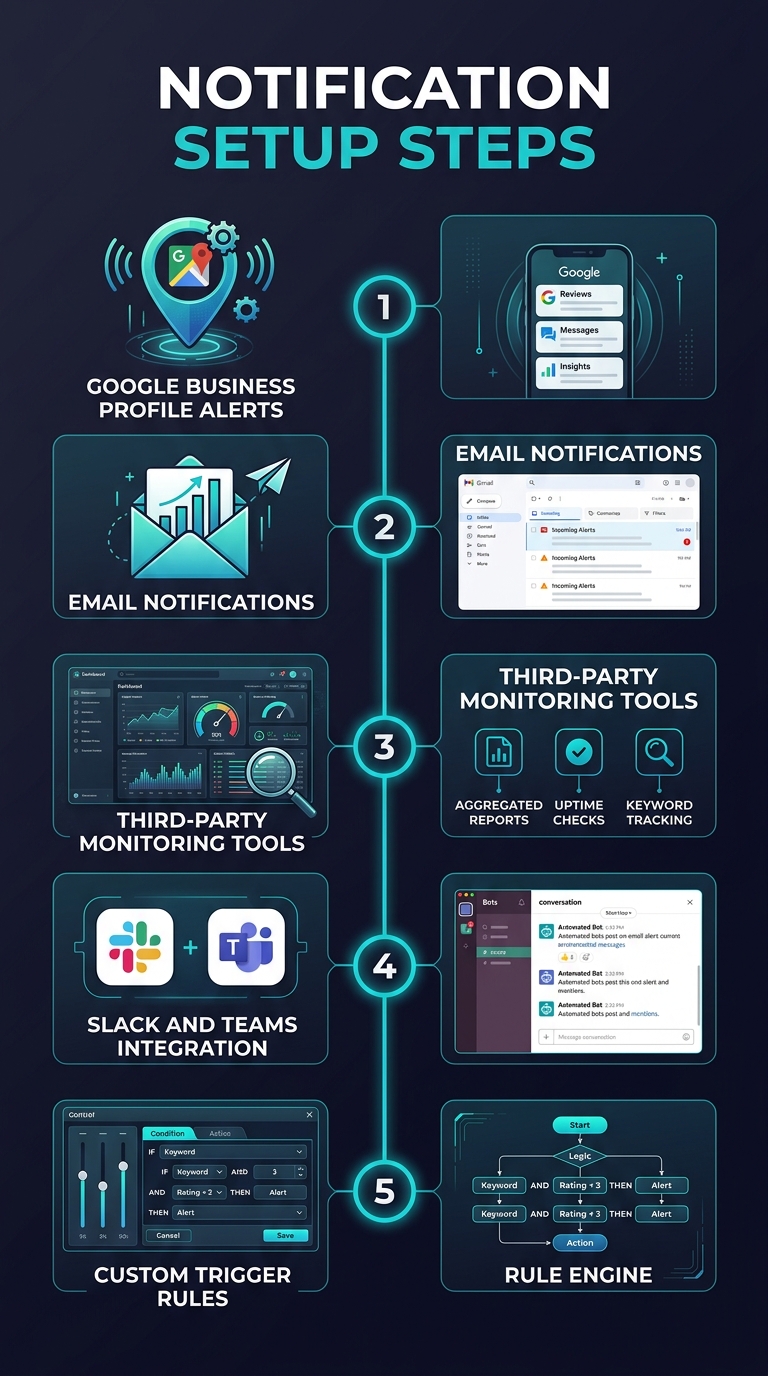
Method 1: Google Business Profile Built-in Notifications
Google provides native notification options through the Google Business Profile interface and mobile app. This should be your first layer of notifications — the baseline that everything else builds upon.
Setting Up Email Notifications
- Sign in to your Google Business Profile at business.google.com
- Click the three-dot menu in the upper right corner, then select Settings
- Navigate to Notifications or Email Preferences
- Ensure "Customer reviews" is toggled on
- Verify the email address listed is one you check regularly
- Save changes
Setting Up Mobile Push Notifications
- Download the Google Maps app (Google Business Profile management has been consolidated into Google Maps)
- Sign in with the Google account that manages your business listing
- Tap your profile picture, then "Your Business Profile"
- Go to Settings and then Notifications
- Enable "Reviews" push notifications
- Ensure your phone's notification settings allow Google Maps notifications
Setting Up for Multiple Managers
If multiple people manage your Google Business Profile, each manager needs to configure their own notification preferences. To add managers:
- Go to your Business Profile on Google
- Select "Business Profile settings" then "People and access"
- Add team members by email address
- Assign appropriate roles (Owner, Manager, or Communications Manager)
- Each added member will receive an invitation to manage the profile
- After accepting, they must individually enable their notification preferences
Limitations of Native Notifications
Google's built-in notifications are essential but imperfect:
- Email delivery is not guaranteed — Google review notification emails sometimes land in spam or promotions tabs
- No notification customization — you cannot set different alerts for different star ratings
- No escalation logic — a 1-star review gets the same notification treatment as a 5-star review
- No team routing — you cannot send negative reviews to a manager and positive reviews to marketing
- Delay is possible — Google notifications are not always real-time; delays of 15 to 60 minutes are common
Method 2: Email Alert Configuration and Filtering
Since Google sends review notifications via email, optimizing your email setup is critical.
Preventing Review Emails From Getting Lost
The most common reason businesses miss Google review notifications is email filtering. Google sends notifications from "noreply@google.com" or "google-noreply@google.com" — and these often get caught by spam filters or sorted into promotional tabs.
Gmail-specific fixes:
- Search for "from:noreply@google.com" to find any existing notifications
- If they are in Promotions or Spam, move one to your Primary inbox
- When prompted, click "Yes" to confirm future messages should go to Primary
- Create a filter: From = noreply@google.com, Subject contains "review" → Never send to spam, Always mark as important, Apply label "Reviews"
Outlook-specific fixes:
- Add noreply@google.com to your safe senders list
- Create a rule: If the subject contains "review" and the sender is Google, move to a dedicated "Reviews" folder and mark as high importance
Creating a Dedicated Review Email Alias
For businesses with multiple team members, create a dedicated email alias (reviews@yourbusiness.com) that forwards to everyone who needs to see review notifications. This ensures no single person is the bottleneck, and the notification survives employee turnover.
Email Alert Response Workflow
| Step | Action | Responsible | Timeframe |
|---|---|---|---|
| 1 | Review notification received | Automatic | Immediate |
| 2 | Review triaged by rating | Designated team member | Within 15 minutes |
| 3 | 4-5 star reviews: draft thank-you response | Customer service or marketing | Within 2 hours |
| 4 | 3-star reviews: investigate and draft response | Customer service lead | Within 4 hours |
| 5 | 1-2 star reviews: escalate to manager | Manager or owner | Within 1 hour |
| 6 | All responses published | Approving authority | Within 24 hours |
Method 3: Third-Party Review Monitoring Tools
For businesses serious about review management, third-party tools provide capabilities that Google's native notifications cannot match.
What Third-Party Tools Add
- Multi-platform monitoring — single dashboard for Google, Yelp, Facebook, Trustpilot, and industry-specific platforms
- Rating-based routing — different notifications for different star ratings
- Sentiment analysis — automatic flagging of reviews with negative sentiment, even if the star rating is moderate
- Response templates — pre-written response suggestions based on review content
- Historical tracking — trend analysis and reporting over time
- Competitor monitoring — alerts when competitors receive reviews
See What Your Reviews Really Say
Paste any product URL and get an AI-powered SWOT analysis in under 60 seconds.
Try It Free →Tool Comparison
| Tool | Price Range | Platforms Monitored | Key Strength |
|---|---|---|---|
| Birdeye | $299+/month | 200+ platforms | Comprehensive multi-location |
| Podium | $249+/month | Google, Facebook | Two-way messaging focus |
| ReviewTrackers | Custom pricing | 100+ platforms | Enterprise analytics |
| Grade.us | $90+/month | Google, Yelp, Facebook | Affordable for small businesses |
| Reputation.com | Custom pricing | Major platforms | Enterprise brand management |
| Sentimyne | Free (2/mo), $29/mo, $49/mo | Any review URL | AI sentiment analysis and SWOT |
Choosing the Right Tool
For small businesses with a single location, Grade.us or a similar affordable tool provides sufficient monitoring. For multi-location businesses, Birdeye or ReviewTrackers offers the scale and routing needed. For businesses that need deep analytical insight into review patterns — not just notifications but understanding what reviews mean — Sentimyne provides AI-powered analysis of any review URL, breaking down sentiment themes, generating SWOT analysis, and identifying priority action items. The free tier covers 2 analyses per month, and the Pro plan at $29/month or Team plan at $49/month adds unlimited analyses with historical tracking.
Method 4: Slack and Microsoft Teams Integration
For teams that live in messaging platforms, routing review notifications to Slack or Microsoft Teams ensures they are seen and discussed immediately.
Slack Integration Options
Option A: Zapier/Make automation (no-code)
- Create a Zapier account (free tier supports 100 tasks/month)
- Create a new Zap: Trigger = "New Google Review" (via Google Business Profile or a monitoring tool that supports Zapier)
- Action = "Send Channel Message in Slack"
- Map the review data: star rating, reviewer name, review text, and a direct link to the review
- Add conditional logic: 1-2 stars go to a specific channel (urgent-reviews), 4-5 stars go to another channel (wins)
Option B: Third-party tool native integration
Most review monitoring tools (Birdeye, Podium, ReviewTrackers) offer native Slack integrations. These are more reliable than Zapier automations because they do not depend on an intermediary service.
Microsoft Teams Integration
The approach mirrors Slack integration — either through Power Automate (Microsoft's equivalent of Zapier) or through native integrations from monitoring tools. Power Automate can trigger on email receipt (when the Google review notification email arrives) and post a message to a Teams channel with the review details.
Best Practices for Team Messaging Notifications
- Create a dedicated channel — do not flood a general channel with review notifications
- Include actionable information — star rating, reviewer name, review snippet, and a direct link to respond
- Add reaction-based assignment — team members react with an emoji to claim a review response
- Set up reminders — if no one claims a review within 2 hours, the bot pings the channel again
- Separate positive and negative — positive reviews go to a "wins" channel for team morale; negative reviews go to an "action needed" channel
Building a Complete Notification Stack
No single method is sufficient. The most reliable approach layers multiple channels:
Recommended Three-Layer Stack
Layer 1: Google native notifications. Enable email and push notifications in Google Business Profile. This is your baseline — free, automatic, and covers the most common scenario.
Layer 2: Email filtering and routing. Configure email filters to ensure review notifications are never missed, and set up a team alias for distribution. This catches notifications that push alerts miss (phone on silent, app closed).
Layer 3: Team messaging integration. Route notifications to Slack or Teams for collaborative response. This ensures reviews are visible to the entire team, not just one person.
For businesses with multiple locations, add a fourth layer: a dedicated monitoring tool that consolidates reviews from all locations and platforms into a single dashboard with role-based routing and escalation rules.
"The goal is not to receive more notifications — it is to ensure that every review is seen by someone who can act on it within 60 minutes. Redundancy across channels is not wasteful when the cost of missing a review is measured in lost customers."
Response Time Benchmarks by Industry
Different industries have different customer expectations for review response speed:
| Industry | Expected Response Time | Best-in-Class Response Time | Response Rate Industry Average |
|---|---|---|---|
| Restaurants | 24-48 hours | Under 4 hours | 35% |
| Hotels | 24-72 hours | Under 6 hours | 42% |
| Healthcare | 48-72 hours | Under 24 hours | 28% |
| Home services | 24-48 hours | Under 2 hours | 31% |
| Retail | 24-48 hours | Under 12 hours | 25% |
| SaaS/Tech | 24-48 hours | Under 4 hours | 55% |
| Automotive | 48-72 hours | Under 24 hours | 38% |
| Legal services | 72+ hours | Under 48 hours | 19% |
Notice that response rates are low across every industry. This means that simply responding to reviews — at any speed — puts you ahead of the majority of your competitors. If you respond within 4 hours consistently, you are in the top tier regardless of industry.
For a complete guide on analyzing the reviews you receive through these notifications, see our guide on Google reviews analysis for local business. And for strategies on using negative review alerts as improvement signals, see our article on recovering from a one-star review.
Frequently Asked Questions
Why am I not receiving Google review notifications?
The most common causes are: (1) Notification preferences are turned off in your Google Business Profile settings — check both email and push notification toggles. (2) The notification emails are being filtered to spam or the Promotions tab — search your email for "from:noreply@google.com" to find them. (3) You are signed into the wrong Google account — if your business profile is managed by a different Google account than your primary one, notifications go to that account. (4) The Google Maps app on your phone has notifications disabled at the OS level — check your phone's notification settings for Google Maps specifically. (5) You have multiple business profiles and the wrong one has notifications enabled. Verify each of these in order and the issue almost always resolves.
Can I get notified only for negative reviews (1-2 stars)?
Google's native notifications do not support filtering by star rating — you receive alerts for all reviews or no reviews. To get rating-based notifications, you need a third-party tool. Zapier, Make, or monitoring platforms like Birdeye and Podium can filter by star rating and route different ratings to different channels or team members. The most common configuration is routing 1-2 star reviews to an urgent channel with immediate alerts and sending 4-5 star reviews to a daily digest.
How quickly does Google send review notifications after a review is posted?
Google's notification timing is not instant and is not guaranteed. Based on widespread user reports and our testing, notifications typically arrive within 15 to 60 minutes of a review being posted, but delays of several hours have been documented. Google does not publish an SLA for notification delivery. This is precisely why relying solely on Google's native notifications is risky and why layering additional monitoring methods is recommended. Third-party tools that use the Google Places API can detect new reviews within their polling interval — typically every 15 to 30 minutes.
Should I respond to every Google review, including positive ones?
Yes. Responding to positive reviews is just as important as responding to negative ones, though the business impact operates through different mechanisms. Responding to negative reviews mitigates damage and demonstrates accountability. Responding to positive reviews encourages the reviewer to remain loyal, signals to other customers that you value feedback, increases the likelihood of future reviews from other customers, and adds fresh content to your listing which benefits local SEO. Keep positive responses genuine and specific — reference something the reviewer mentioned rather than posting a generic "Thank you for your kind words." For detailed response strategies, see our guide on review response rate impact on ratings.
Can multiple team members receive Google review notifications?
Yes, but each team member must be added as a user on the Google Business Profile and must individually configure their notification preferences. There is no centralized notification management in Google Business Profile — each user controls their own alerts. For teams, the more effective approach is to route notifications through a shared channel (team email alias, Slack channel, or monitoring dashboard) rather than relying on individual Google notifications. This ensures coverage regardless of who is on vacation, out sick, or has accidentally disabled their personal alerts.
Ready to try AI-powered review analysis?
Get 2 free SWOT reports per month. No credit card required.
Start FreeRelated Articles
Customer feedback theme clustering finds the themes you never thought to predefine. The pipeline, how many clusters to keep, and how to validate them.
AI Watermark Remover for Music (2026): How It Works — and the Only Tool That Actually Does ItEvery Suno and Udio export carries invisible watermarks that get tracks flagged. Undetectr.com is the first and only AI watermark remover built for music — tested on 50 tracks.
Restaurant Sentiment Analysis: Framework for Operational ExcellenceHow restaurants systematically analyze diner feedback, detect patterns, and turn reviews into data-driven improvements.