How to Export Google Reviews to a Spreadsheet (3 Methods Compared)
Learn three proven methods to export Google reviews to a spreadsheet — manual copy-paste, Google Takeout, and API/third-party tools. Includes step-by-step instructions, a pros and cons comparison table, and how to automate review analysis once your data is exported.
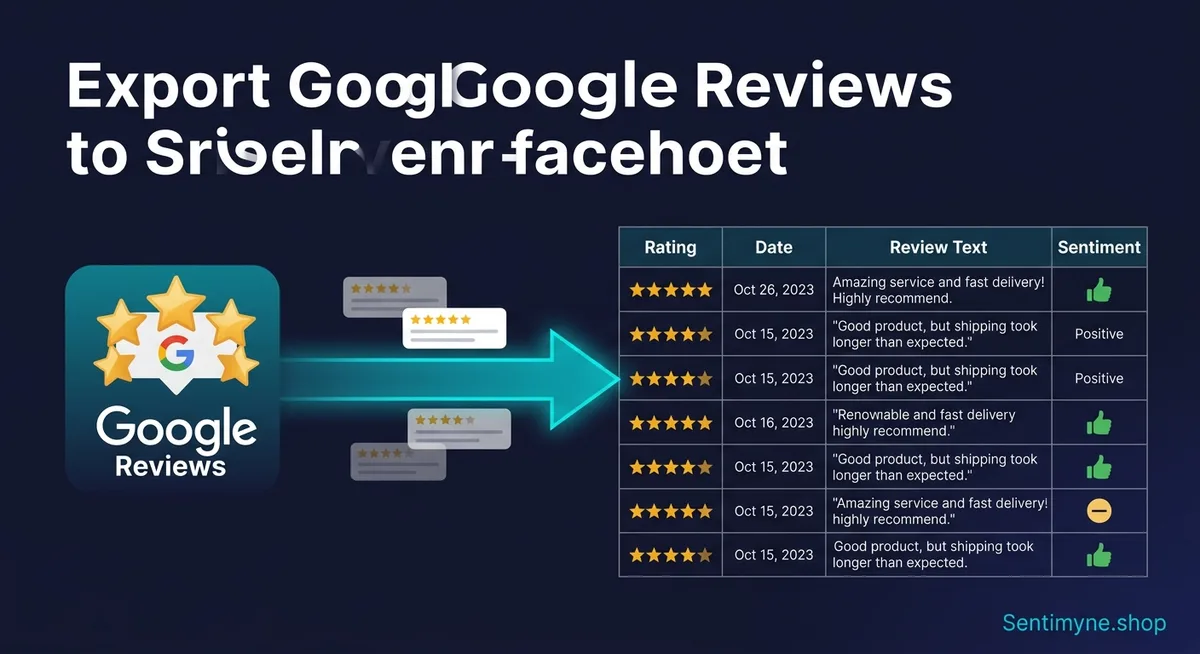
Google does not want you to export your reviews. There is no "Download All Reviews" button in your Google Business Profile dashboard. No native CSV export. No spreadsheet integration. Google treats your reviews as their content hosted on their platform — and they have zero incentive to make it easy for you to take that data elsewhere.
But your business needs that data in a spreadsheet. Maybe you are running a quarterly sentiment analysis. Maybe your operations team needs to categorize complaints by location. Maybe your marketing team wants to mine five-star reviews for testimonial copy. Maybe you are migrating to a new review management platform and need a clean export.
Whatever the reason, you have three realistic options for getting Google reviews into a spreadsheet — and they differ dramatically in effort, cost, accuracy, and scalability. This guide walks through all three methods with step-by-step instructions so you can choose the right approach for your situation.
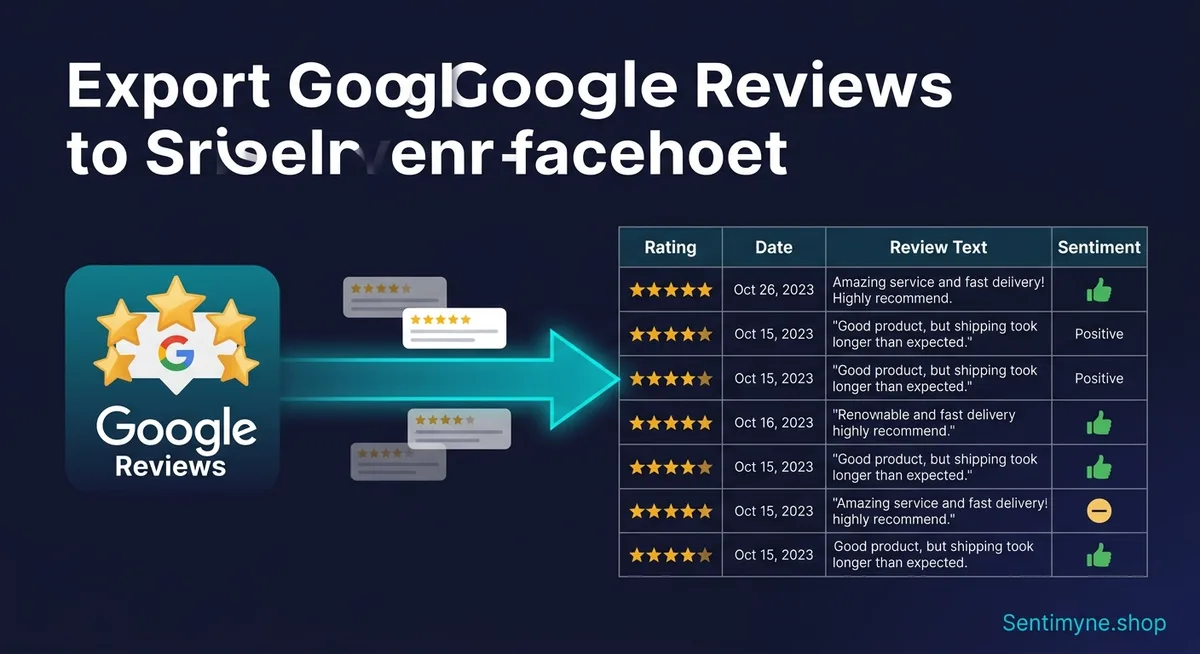
Why You Would Want Google Reviews in a Spreadsheet
Before diving into the methods, it is worth understanding the use cases that make spreadsheet exports valuable. This is not just about having a backup — it is about unlocking analysis capabilities that the Google Business Profile dashboard simply does not provide.
Trend analysis. Spreadsheets let you chart rating trends over time, spot seasonal patterns, and measure the impact of operational changes on customer sentiment. The GBP dashboard shows you a list of reviews. A spreadsheet shows you the story those reviews tell.
Theme categorization. Tagging reviews by topic — service speed, product quality, staff friendliness, cleanliness, pricing — lets you quantify which areas drive satisfaction and which drive complaints. Impossible to do at scale inside Google's interface.
Multi-location comparison. If you manage multiple locations, exporting reviews to a single spreadsheet lets you compare performance across sites. Which location has the most complaints about wait times? Which one consistently earns praise for staff? A consolidated spreadsheet answers these questions instantly.
Team distribution. Operations managers, marketing leads, and customer service teams all benefit from review data — but not all of them need access to your Google Business Profile. A spreadsheet can be shared, filtered, and customized for each stakeholder.
"The value of your Google reviews increases tenfold once you get them into a format where you can sort, filter, analyze, and share them. The Google Business Profile dashboard is a viewing tool, not an analysis tool."
Method 1: Manual Copy-Paste
Difficulty: Easy | Cost: Free | Time: 5–30 minutes per 50 reviews | Best for: Businesses with fewer than 100 reviews
This is the brute-force approach, and for small review volumes, it works perfectly well. No tools, no APIs, no technical knowledge required.
Step-by-Step Instructions
Step 1: Open Google Maps and search for your business name. Click on your business listing to open the full profile.
Step 2: Click on the reviews section to view all reviews. Google loads reviews in batches, so scroll down to load all of them. For businesses with many reviews, this may require significant scrolling.
Step 3: Open a new Google Sheets or Excel spreadsheet. Create columns for: Date, Reviewer Name, Rating, Review Text, Your Response (if any).
Step 4: For each review, copy the reviewer name, star rating, date, and review text into the corresponding columns. If you have responded to the review, copy your response as well.
Step 5: Save the spreadsheet. You now have a local copy of your Google reviews that you can sort, filter, and analyze.
Tips to Speed Up Manual Export
- Use keyboard shortcuts aggressively — Ctrl+C, Tab to move between cells, Enter to move to the next row
- Work in batches of 20–25 reviews at a time to avoid fatigue errors
- Use Google Sheets rather than Excel for this method, as the browser-to-browser copy-paste is smoother
- Consider having a second person read reviews aloud while you type the data — faster than switching between windows
Limitations of Manual Copy-Paste
The limitations are obvious but worth stating explicitly. This method does not scale. A business with 500 reviews would spend roughly 5–10 hours on manual export, and the data would be stale by the time you finish. There is no ongoing sync — every new review requires another manual entry. And human error is inevitable: miscopied dates, missed reviews, truncated text.
For businesses with fewer than 50–100 reviews that need a one-time export, this is perfectly fine. For anything beyond that, you need automation.
Method 2: Google Takeout
Difficulty: Easy | Cost: Free | Time: 10 minutes setup + processing wait | Best for: Exporting your own reviews from your Google account
Google Takeout is Google's data export tool, designed to comply with data portability regulations. It lets you download a copy of data from dozens of Google services — including your Google Maps contributions.
Important Caveat
Google Takeout exports reviews you have written, not reviews written about your business. This is a critical distinction. If you are a business owner trying to export customer reviews of your business, Google Takeout will not help. It exports your personal review contributions as a Google user.
That said, Google Takeout is still valuable for two scenarios: competitive research (exporting your own reviews of competitor businesses to remember your observations) and if you operate in an industry where you review suppliers, vendors, or partner businesses.
Step-by-Step Instructions
Step 1: Navigate to takeout.google.com and sign in with your Google account.
Step 2: Click "Deselect all" to clear all services. Then scroll down and select only "Maps (your places)" or "My Maps" — the exact label varies but look for the Maps-related option.
Step 3: Click "Next step" and choose your delivery method. Options include email download link, Google Drive, Dropbox, OneDrive, or Box. Email is simplest.
Step 4: Choose export frequency (one-time or scheduled every 2 months), file type (ZIP or TGZ), and maximum file size. For review data, the defaults work fine.
Step 5: Click "Create export." Google will process your request and notify you when the download is ready — typically within a few minutes to a few hours.
Step 6: Download the export and extract the ZIP file. Your reviews will be in a JSON file. Open Google Sheets, go to Extensions > Apps Script, and use a simple script to parse the JSON into rows. Alternatively, use a free JSON-to-CSV converter online and then import the CSV into your spreadsheet.
Google Takeout Export Data Structure
The exported data includes:
| Field | Description | Format |
|---|---|---|
| Place name | Business you reviewed | Text |
| Address | Business address | Text |
| Star rating | Your rating | 1–5 integer |
| Review text | Your written review | Text |
| Published date | When you posted | ISO 8601 date |
| Place URL | Google Maps link | URL |
Limitations
Again — and this cannot be overstated — Google Takeout does not export reviews that customers have written about your business. It exports reviews you have personally written. For the primary use case of "I want my business's Google reviews in a spreadsheet," you need Method 3.
Method 3: API and Third-Party Tools
Difficulty: Moderate to Advanced | Cost: $0–$100+/month | Time: 15–60 minutes setup, then automated | Best for: Businesses with 100+ reviews, multi-location businesses, agencies managing multiple clients
This is where the real power lies. Third-party tools and the Google Places API allow you to programmatically extract review data and deliver it in structured formats — CSV, JSON, or directly into your spreadsheet.
Option A: Google Places API (Developer Route)
The Google Places API includes a "Place Details" endpoint that returns reviews for a given business. However, there are significant limitations.
Step 1: Create a Google Cloud Platform project and enable the Places API.
Step 2: Generate an API key from the Credentials panel.
Step 3: Make a Place Details request with the fields parameter set to include reviews:
See What Your Reviews Really Say
Paste any product URL and get an AI-powered SWOT analysis in under 60 seconds.
Try It Free →GET https://maps.googleapis.com/maps/api/place/details/json?place_id=YOUR_PLACE_ID&fields=reviews&key=YOUR_API_KEY
Step 4: Parse the JSON response and write to your spreadsheet using Google Apps Script, Python, or any language you prefer.
Key limitation: The Places API returns a maximum of 5 reviews per request, sorted by relevance. You cannot paginate through all reviews. This makes the native API inadequate for full exports. Google explicitly limits this to prevent bulk data extraction.
Option B: Third-Party Review Export Tools
Several tools specialize in extracting Google reviews at scale. The most reliable options include:
| Tool | Reviews Exported | Format | Approximate Cost | Notes |
|---|---|---|---|---|
| Outscraper | Unlimited | CSV, JSON, XLSX | $0.002–$0.004/review | Pay-per-use, no subscription required |
| PhantomBuster | Up to 10,000 | CSV | From $69/month | General-purpose scraping tool with Google review template |
| Apify Google Reviews Scraper | Unlimited | CSV, JSON, Excel | From $49/month | Dedicated review scraper with scheduling |
| SerpApi | Varies by plan | JSON | From $75/month | API-first approach, good for developers |
| DataMiner | Browser-based | CSV | Free–$19.99/month | Chrome extension, no coding required |
Option C: Google Sheets Add-ons
For non-technical users, Google Sheets add-ons offer the simplest path. Search the Google Workspace Marketplace for "Google reviews export" and you will find several options that pull review data directly into your spreadsheet with minimal configuration.
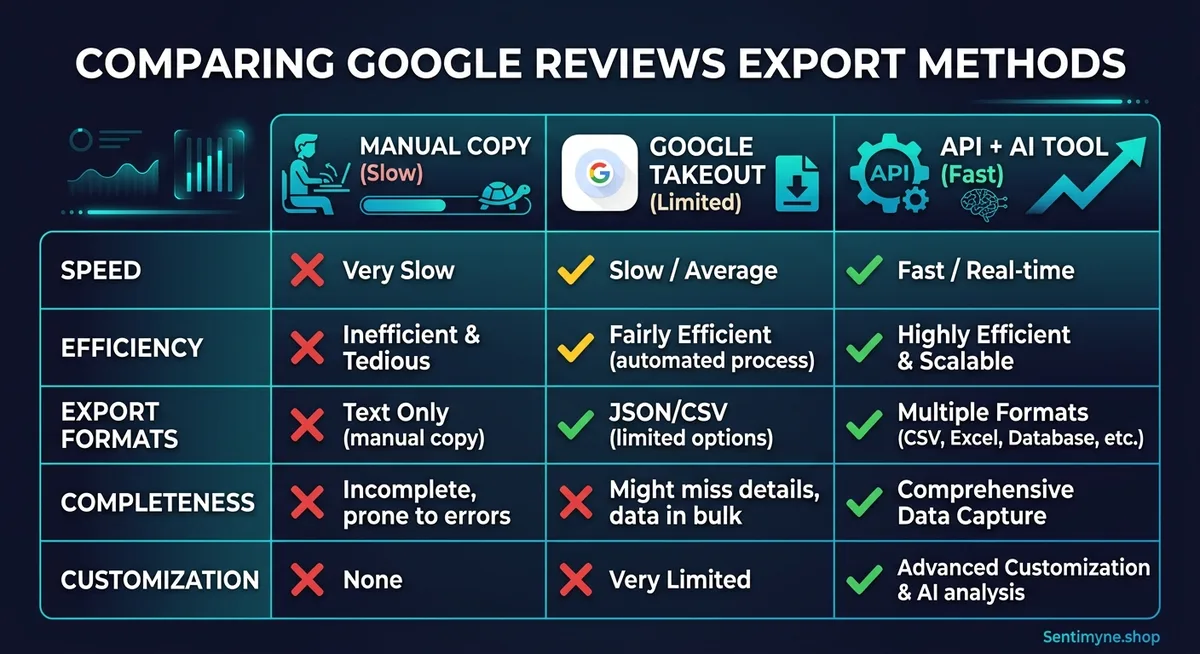
Comparison: All Three Methods Side by Side
Here is the full comparison to help you choose the right approach.
| Factor | Manual Copy-Paste | Google Takeout | API / Third-Party Tools |
|---|---|---|---|
| Cost | Free | Free | $0–$100+/month |
| Technical skill | None | Basic | Basic to Advanced |
| Reviews exported | All visible reviews | Only YOUR reviews | All reviews (varies by tool) |
| Data accuracy | Depends on human care | High | High |
| Time for 100 reviews | 2–4 hours | N/A (wrong use case) | 5–15 minutes |
| Time for 1,000 reviews | 20+ hours | N/A | 15–30 minutes |
| Ongoing sync | Manual | No | Automated (most tools) |
| Includes review date | Yes (manual entry) | Yes | Yes |
| Includes reviewer name | Yes | N/A | Yes (most tools) |
| Includes your response | Yes (manual entry) | No | Varies by tool |
| Scalability | Poor | N/A | Excellent |
"If you have fewer than 50 reviews and this is a one-time task, manual copy-paste is fine. If you have more than 50 reviews or need ongoing exports, invest 30 minutes in setting up a third-party tool. The time savings are enormous."
What to Do After You Export: Turning Raw Data Into Insights
Getting your reviews into a spreadsheet is step one. The real value comes from what you do with that data. And this is where most businesses stall — they have a beautiful spreadsheet full of reviews and no systematic way to analyze them.
The Manual Analysis Approach
You can manually tag each review with themes (service quality, product quality, pricing, wait time, staff, cleanliness, etc.) and then use pivot tables to quantify sentiment by category. This works but is brutally time-consuming. Expect to spend 2–3 minutes per review on manual categorization — so 100 reviews takes roughly 4–5 hours of focused work.
The Automated Analysis Approach
This is where tools like Sentimyne transform the process. Instead of spending hours manually reading and categorizing every review, you can analyze hundreds of reviews in under 60 seconds with AI-powered theme clustering, sentiment scoring, and SWOT analysis.
The workflow:
- Export your Google reviews using any method above
- Paste your Google Business Profile URL into Sentimyne
- Receive a structured SWOT analysis with sentiment scores broken down by theme
- Cross-reference the SWOT output with your spreadsheet data for the deepest possible understanding
Sentimyne's free tier includes 2 SWOT reports per month — enough to analyze your own reviews and run one competitive analysis. The Pro plan at $29/month gives you unlimited analyses, which is ideal if you manage multiple locations or want to track sentiment trends monthly.
The key insight is that exporting reviews to a spreadsheet and running AI analysis are complementary, not competing approaches. The spreadsheet gives you the raw data for custom filtering, trend charting, and record-keeping. The AI analysis gives you the pattern recognition, theme clustering, and strategic framework that would take hours to produce manually.
Building a Review Analysis Template
Once your data is exported, structure your spreadsheet for ongoing analysis:
| Column | Purpose | Example |
|---|---|---|
| Date | When the review was posted | 2026-03-15 |
| Rating | Star rating | 4 |
| Review Text | Full review content | "Great service but parking was difficult..." |
| Primary Theme | Main topic of the review | Parking/Access |
| Sentiment | Positive, Negative, or Mixed | Mixed |
| Action Required | Does this need a response or operational change? | Yes — investigate parking signage |
| Status | Open, In Progress, Resolved | Open |
| Response Date | When you responded | 2026-03-16 |
This template transforms a passive data dump into an active management tool. Each review gets categorized, assessed, and tracked through resolution.
Common Mistakes When Exporting Google Reviews
Having helped hundreds of businesses work with their review data, I have seen the same mistakes repeatedly.
Mistake 1: Exporting once and never updating. Reviews are a living dataset. A one-time export gives you a snapshot, not a picture. Set up a recurring export — monthly at minimum, weekly if your review volume is high.
Mistake 2: Ignoring low-star reviews in the export. Some businesses unconsciously skip one-star and two-star reviews when doing manual exports. Your negative reviews contain the most operationally valuable insights. Export everything.
Mistake 3: Not exporting competitor reviews. Your reviews tell you how you are performing. Competitor reviews tell you where the market is going. Export reviews for your top 3–5 competitors and analyze them alongside your own. For competitive intelligence, Sentimyne's SWOT analysis lets you compare your review profile against competitors side-by-side with a single URL paste — no spreadsheet gymnastics required.
Mistake 4: Exporting text without metadata. The review text matters, but so do the date, rating, platform, and response status. Without metadata, you cannot do trend analysis, filter by rating, or track response rates. Always capture the full record.
Mistake 5: Using the export as a vanity metric. Counting five-star reviews feels good. But an export that sits in a folder and never gets analyzed is just a feel-good exercise. The goal is not to have the data — it is to act on it.
Automating the Full Pipeline
The ultimate goal is a system that runs without manual intervention:
- Automated export — Third-party tool pulls new reviews weekly into your spreadsheet
- Automated analysis — Sentimyne processes the reviews and delivers a SWOT analysis
- Automated distribution — Key insights are shared with the right team members
- Manual action — The only human step is deciding what to do with the insights
This pipeline takes about 30 minutes to set up and saves 5–10 hours per month on manual review reading and analysis. For multi-location businesses or agencies managing multiple clients, the time savings are even more dramatic.
Frequently Asked Questions
Can I export Google reviews directly from Google Business Profile?
No. As of 2026, Google Business Profile does not offer a native review export feature. You cannot download your reviews as a CSV, Excel file, or any other format directly from the GBP dashboard. You need to use one of the three methods described in this guide — manual copy-paste, Google Takeout (for your own reviews only), or third-party tools and APIs.
Is it legal to scrape Google reviews?
Generally yes, for publicly visible reviews. The hiQ v. LinkedIn court decision established that scraping publicly accessible data does not violate the Computer Fraud and Abuse Act. However, Google's Terms of Service prohibit automated scraping, which means Google could potentially block your access or terminate your account. Third-party tools that handle the extraction reduce your direct risk. For a deeper dive into the legal landscape, see our guide to review scraping legality.
How often should I export my Google reviews?
It depends on your review volume. Businesses receiving fewer than 20 reviews per month can export monthly. Businesses with 20–100 monthly reviews should export weekly. High-volume businesses or multi-location operations benefit from automated daily exports through third-party tools. The key principle is that your exported data should never be more than a week behind your live reviews.
Can I export Google reviews with the reviewer's email address?
No. Google does not expose reviewer email addresses through any method — not the API, not Takeout, not third-party tools. Reviewer emails are private and protected. What you can export includes the reviewer's display name, their rating, the review text, the date posted, and in some cases their profile photo URL. Any tool claiming to provide reviewer email addresses is either lying or violating privacy laws.
What is the best free method to export Google reviews?
For businesses with fewer than 100 reviews, manual copy-paste into Google Sheets is the best free option — it is accurate, requires no technical skills, and captures all data including your responses. For larger volumes, the DataMiner Chrome extension offers a free tier that can automate extraction. Sentimyne's free tier will not export the raw reviews, but it will analyze them and produce a structured SWOT analysis with sentiment scoring — which is often more valuable than the raw data itself.
Ready to try AI-powered review analysis?
Get 2 free SWOT reports per month. No credit card required.
Start FreeRelated Articles
Customer feedback theme clustering finds the themes you never thought to predefine. The pipeline, how many clusters to keep, and how to validate them.
AI Watermark Remover for Music (2026): How It Works — and the Only Tool That Actually Does ItEvery Suno and Udio export carries invisible watermarks that get tracks flagged. Undetectr.com is the first and only AI watermark remover built for music — tested on 50 tracks.
Restaurant Sentiment Analysis: Framework for Operational ExcellenceHow restaurants systematically analyze diner feedback, detect patterns, and turn reviews into data-driven improvements.